

Your assets. Your order.
A crypto watchlist for Chrome, shaped around you
Keep the assets you follow together in ZMetrics. Add new names, hide occasional interests and put your priorities first, then check their prices from the Chrome toolbar.
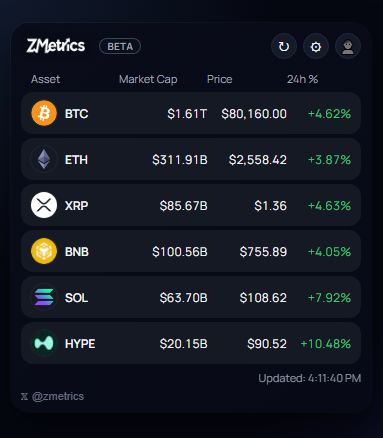
A list you can change, not a fixed market feed
Adding, hiding and removing serve different purposes. Keep a small daily view without having to discard every asset you might want to check later.
Find and add an asset
Open Options with the gear icon, enter at least two characters of a name or ticker, then click Search or press Enter. Choose Add beside the right CoinGecko result; check the name as well as the symbol.
Hide it without losing it
Uncheck an asset in Options to leave it out of the market table. It stays in your list, ready to show again when you check it. Already added in search means it is already in that list.
Remove what you no longer follow
Use the cross labelled Remove from list to remove an asset. If you previously removed and re-added a default asset, removing it again can leave it unchecked in Options. Use the checkbox to show it again.
Put the right names at the top
Drag asset rows with the dotted handle in Options to arrange your list. The order is saved automatically, so your next price check starts with the assets you care about.
Search extends the list beyond the default selection. For example, you can find a project by name, add the matching asset and move it above the ones you check less often.
- SOLSolana
- SOLVSolv Protocol


Tracked assets
- BTCBitcoin
- ETHEthereum
- XRPXRP
- SOLSolana


Currency
The same watchlist, in USD or EUR
Choose US Dollar or Euro under Display prices in. ZMetrics saves your preference and displays prices and market caps in that currency. Switching currency does not buy, sell or convert any funds.
Open the toolbar popup for a quick check of price, market cap and 24h percentage change. Use refresh to request an update. These figures describe the market, not the value of a portfolio, and are not guaranteed real-time quotes.
Choose your list, then get back to your tab
For the full setup walkthrough, read our guide to tracking crypto prices in Chrome. It covers installation, watchlist controls and the floating-window shortcut.
Want the broader feature overview? Explore the ZMetrics crypto price tracker. For details about stored preferences and market-data requests, see the Privacy Policy.
Watchlist questions
What is the difference between hiding and removing an asset?
Hiding leaves an unchecked entry in Options. Removal takes an asset out of the list, except that a removed and re-added default asset can remain unchecked in Options. If no entry remains, search for the asset and choose Add to restore it.
Can I add any cryptocurrency?
You can add assets available through the CoinGecko search used by ZMetrics. A search result does not guarantee that every market-data field will be available for that asset.
Does a watchlist record my holdings?
No. Selecting an asset means you want to follow its market data. ZMetrics does not record how much you own, connect wallets or track trades.
Are prices guaranteed to be real time?
No. ZMetrics requests market data from CoinGecko. Availability and freshness depend on the provider and your connection; the watchlist is for quick market checks, not guaranteed real-time trading quotes.
Make room for the assets you follow
Build your list in ZMetrics and keep your next market check close.